
Installing WATCHOUT
Setting up WATCHOUT represents the first step toward creating your show. The installation process is straightforward, but ensuring your system is prepared correctly is key to a stable performance environment.
Getting the Installer
- Visit the official Dataton website at dataton.com/downloads.
- Navigate to the WATCHOUT 7 section.
- Download the latest release installer.
Installation Process
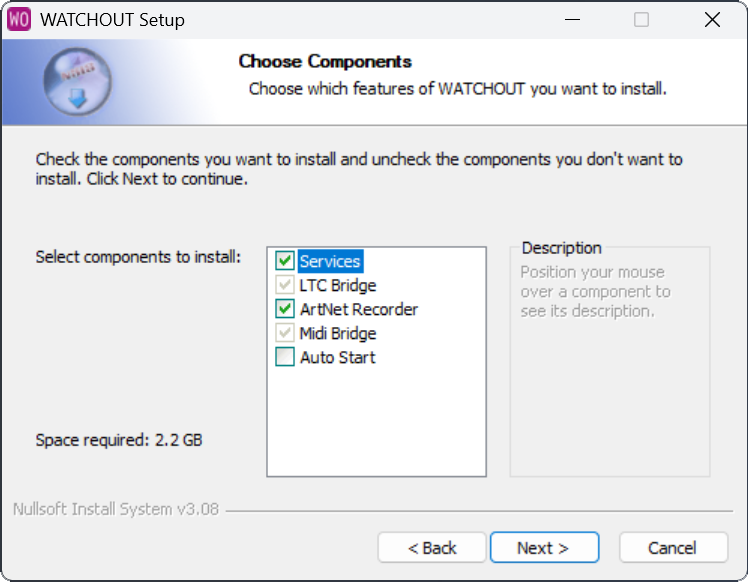
1. Select Components
During installation, you will be prompted to select components. Ensure valid options are selected for your needs.
2. Drivers and Prerequisites
The installer sets up the Code Meter Runtime, required to run licensed WATCHOUT components.
Unattended Installation
The installer also runs without any dialogs. Use this for scripted deployment and automation.
The examples below use <installer>.exe as a placeholder. Replace it with the actual filename you downloaded.
The basic silent install:
start /wait "" "<installer>.exe" /SUse start /wait (cmd) or Start-Process -Wait (PowerShell). Without one of these, the launcher returns straight away and your script continues before the install has finished. This is because the installer spawns an elevated child process to do the actual work and then exits.
Capturing the Exit Code
The installer returns 0 on success and a non-zero value on failure. Capture it like this:
start /wait "" "<installer>.exe" /S
echo Exit code: %ERRORLEVEL%
$p = Start-Process -Wait -PassThru -FilePath '.\<installer>.exe' -ArgumentList '/S'
Write-Host "Exit code: $($p.ExitCode)"Both forms wait on the elevated child, so the captured exit code reflects the actual install result.
Install Directory
By default the installer puts WATCHOUT in C:\WATCHOUT7. To pick a different directory, add /D= as the last argument. The path is everything between /D= and the end of the command line, so spaces in the path are fine — just do not wrap the path in quotes (the quotes would end up as literal characters in the install path).
start /wait "" "<installer>.exe" /S /D=D:\WATCHOUT\The path may contain spaces:
start /wait "" "<installer>.exe" /S /D=C:\Program Files\WATCHOUT 7.8.0\Choosing Components
These flags pick which optional components install. Combine as many as needed:
| Flag | Effect |
|---|---|
/AutoStart | Starts WATCHOUT Manager automatically at boot. |
/NoArtNetRecorder | Skips the ArtNet Recorder. |
/NoLtcBridge | Skips the LTC Bridge. |
/NoMidiBridge | Skips the Midi Bridge. |
/NoCodeMeter | Skips the bundled CodeMeter Runtime installer. Use this if CodeMeter is already installed. |
The WATCHOUT base (Producer, Director, Runner, Asset Manager, and supporting services) always installs. There is no flag to disable it.
A typical scripted install with auto-start enabled and the bridges and recorder skipped:
start /wait "" "<installer>.exe" /S /AutoStart /NoLtcBridge /NoMidiBridge /NoArtNetRecorder /D=C:\WATCHOUT7\Silent Uninstall
The uninstaller also supports /S:
start /wait "" "C:\WATCHOUT7\Uninstall.exe" /SSilent uninstall does the following in order:
- Stops any running WATCHOUT process whose program lives under the install directory.
- Removes the WATCHOUT Manager auto-start scheduled task if it exists.
- Removes the
Dataton-*Windows Firewall rules. - Deletes the uninstall and
.watchfile-association registry keys. - Deletes the WATCHOUT desktop shortcuts.
By default the silent uninstall keeps your user settings and your assets folder. To also remove these, pass one or both of the flags below:
| Flag | Effect |
|---|---|
/DeleteSettings | Also deletes user settings under %APPDATA%\se.dataton.wo.producer and %APPDATA%\Dataton\WATCHOUT 7. |
/DeleteAssets | Also deletes the assets folder (<install-dir>\.wo). Without this flag, every other file in the install directory is removed but .wo is kept. |
These flags only apply in silent mode. The interactive uninstaller always asks two questions — one about user settings, one about the assets folder — regardless of any flags.
What these flags actually touch:
- Settings are stored under
%APPDATA%, not inside the install directory. They are per-Windows-user, so uninstalling only removes settings for the user who runs the uninstaller. Other users on the same computer keep their settings. - Assets here means the default working directory,
<install-dir>\.wo. If you have redirected the working directory to a different path from Producer (see Working Directory Management), the uninstaller does not touch the redirected location — only the.wofolder under the install directory. You must clean up a redirected working directory by hand.
Examples. Wipe everything (settings, assets, install directory):
start /wait "" "C:\WATCHOUT7\Uninstall.exe" /S /DeleteSettings /DeleteAssetsRemove the program but keep settings and cached assets (useful before reinstalling):
start /wait "" "C:\WATCHOUT7\Uninstall.exe" /SReset settings but keep cached assets:
start /wait "" "C:\WATCHOUT7\Uninstall.exe" /S /DeleteSettingsPost-Installation Checklist
- Windows Settings: Set "Power & sleep" settings to Never for both screen and sleep.
- Notifications: Turn off "Focus assist" and Windows notifications to prevent interruptions.
- Auto-login (Display computers): Enable Windows auto-login for the local administrator account WATCHOUT will run under. This lets the system recover unattended after a power cycle.