
Installing WATCHOUT
Setting up WATCHOUT represents the first step toward creating your show. The installation process is straightforward, but ensuring your system is prepared correctly is key to a stable performance environment.
Getting the Installer
- Visit the official Dataton website at dataton.com/downloads.
- Navigate to the WATCHOUT 7 section.
- Download the latest release installer.
Installation Process
1. Run as Administrator
Right-click the downloaded installer file and select Run as administrator. This ensures the installer has the necessary permissions to register components and modify system settings.
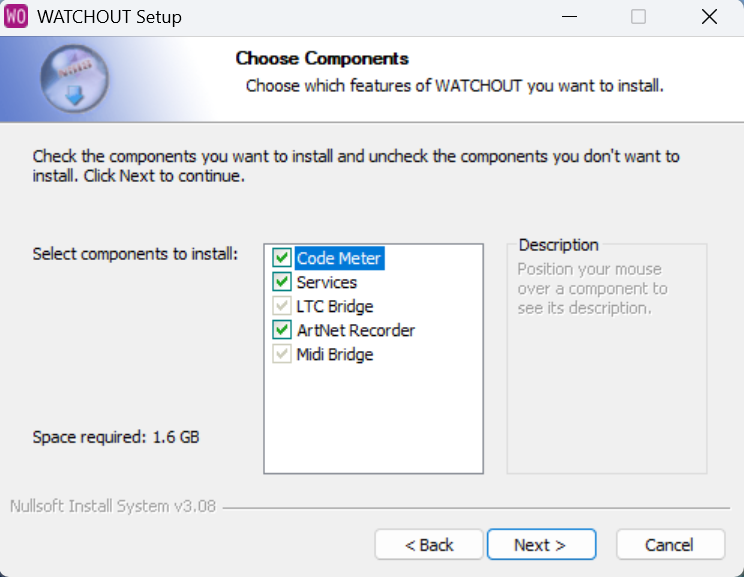
2. Select Components
During installation, you will be prompted to select components. Ensure valid options are selected for your needs.
3. Drivers and Prerequisites
The installer checks for and installs several critical system dependencies. It is essential to allow these installations to complete:
- CodeMeter Runtime: This is the background service that manages your Dataton license keys. It ensures your software is properly authorized and handles network licensing if applicable.
- Microsoft WebView2: Required for certain parts of the user interface (such as the Asset Manager and Help system) that are built on modern web technologies.
- Vulkan Runtime: A modern, high-performance graphics API. WATCHOUT 7 uses Vulkan for its rendering engine to achieve lower overhead and efficient GPU resource management.
4. Restart
After the installation completes, restart your computer. This is mandatory to ensure all system drivers and network services are correctly initialized.
Post-Installation Checklist
- Windows Settings: Set "Power & sleep" settings to Never for both screen and sleep.
- Notifications: Turn off "Focus assist" and Windows notifications to prevent interruptions.
- User Account: It is recommended to run WATCHOUT under a Standard User account with auto-login enabled for Display computers, not Administrator, to prevent accidental system changes during a show.