
HDR and Color Management
WATCHOUT includes a color-managed rendering pipeline that handles the full chain from media decode through compositing to display output. This pipeline supports both standard dynamic range (SDR) and high dynamic range (HDR) workflows, with configurable color spaces and transfer functions at the asset, cue, and display levels.
Understanding how color spaces, transfer functions, and bit depth interact is important for achieving accurate, consistent color across multi-display setups — especially when mixing SDR and HDR content or driving displays with different capabilities.
In simple terms, color management is about making sure colors look the way they should on every screen in your setup. "SDR" is standard brightness (what most screens have shown for decades), while "HDR" allows much brighter highlights and deeper darks — closer to what your eyes see in the real world.
The Rendering Pipeline
Color data flows through a four-stage pipeline as it moves from source media to the physical display:
| Stage | Description |
|---|---|
| Original | The raw pixel values as encoded in the media file, with their native color space and transfer function. |
| Asset Manager | Decodes and prepares the asset. The EOTF is applied to linearize the encoded values, and color primaries are converted to the internal compositing space. |
| Visual Renderer | All compositing, blending, effects, and layer mixing occur in 16-bit linear Rec. 2020 ("Optical Space"). Working in linear light ensures physically accurate operations. |
| Display | The final composited image is converted from Rec. 2020 to the target display's color space, and the appropriate OETF is applied to encode the output signal. |
WATCHOUT's color-managed pipeline processes every pixel through a consistent chain of operations, regardless of the source format. Each input asset's encoded pixel values are first linearized by applying the appropriate Electro-Optical Transfer Function (EOTF), which reverses the transfer curve and converts the signal back to linear light. The linear values are then converted from the asset's native color primaries into the internal compositing color space — 16-bit linear Rec. 2020.
All compositing, blending, effects, and layer mixing happen in this single wide-gamut linear space (referred to as "Optical Space" in the diagram below). Working in linear light ensures that operations like alpha blending, color correction, and gradient rendering are physically accurate.
Once the final composited image is ready, it is converted from the internal Rec. 2020 primaries to the target display's color space, and the appropriate Opto-Electronic Transfer Function (OETF) is applied to encode the result for the output signal — for example, PQ encoding for an HDR display or a gamma curve for an SDR display.
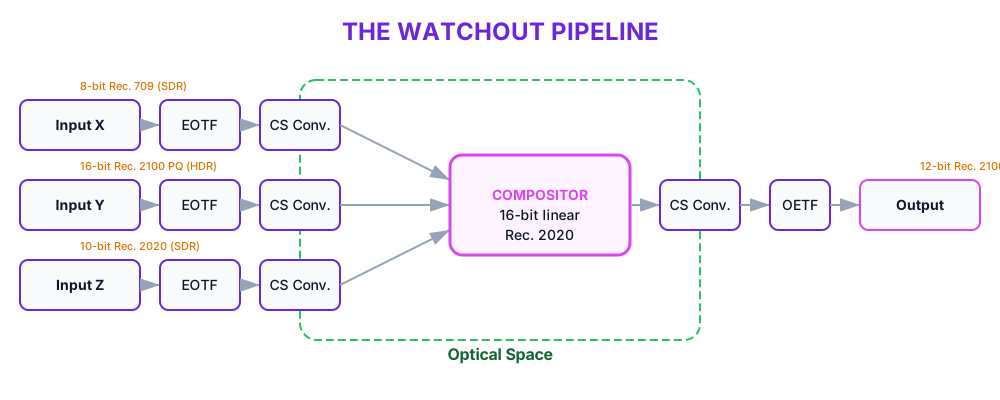
Color Spaces
A color space defines the range of colors (the "gamut") that can be represented, specified by three color primaries and a white point. WATCHOUT supports the following color spaces for display output:A color space's gamut determines the range of colors it can represent. sRGB and Rec. 709 have a relatively narrow gamut suitable for conventional displays, while Rec. 2020 covers a significantly wider range — enabling more saturated and vivid color reproduction. The display hardware must support the target gamut for the wider color space to produce a visible benefit.
- sRGB — the standard color space for computer displays, using Rec. 709 primaries with the sRGB transfer function. This is appropriate for most conventional displays and projectors.
- sRGB (gamma 2.2) — identical primaries to sRGB but using a simple 2.2 power-law gamma curve instead of the sRGB piecewise function. Some display hardware and workflows assume a pure gamma 2.2 characteristic. This is the default color space for new displays.
- Rec. 601 — the legacy standard-definition color space, sometimes relevant for SD broadcast or older equipment.
- Rec. 709 — the HD broadcast standard, sharing primaries with sRGB but using the SDR (BT.1886) transfer function. Use this for broadcast-oriented outputs and SDI feeds.
- Rec. 2020 — a wide-gamut color space that covers a significantly larger portion of visible colors than Rec. 709. Used for UHD/4K SDR content that requires extended color accuracy. Because no current display hardware can reproduce the full Rec. 2020 gamut, this space serves as a target for wide-gamut content that will be displayed on the best available hardware.
- Rec. 2100 PQ — combines Rec. 2020 wide-gamut primaries with the Perceptual Quantizer (PQ) transfer function, as defined in the SMPTE ST 2084 standard. PQ maps absolute luminance levels up to 10,000 nits, making it the foundation of HDR10 delivery.
- Rec. 2100 PQ (HDR10) — the same as Rec. 2100 PQ but with HDR10 static metadata signaling enabled. Use this when the display or downstream equipment expects HDR10 metadata (MaxCLL, MaxFALL) in the signal.
- Rec. 2100 HLG — combines Rec. 2020 primaries with the Hybrid Log-Gamma (HLG) transfer function. HLG is designed to be backward-compatible with SDR displays — the lower portion of the curve resembles a standard gamma curve, while the upper portion extends into HDR. This is commonly used in live broadcast HDR workflows.
Transfer Functions
Transfer functions define how linear light values are encoded into the non-linear signal that displays expect. Encoding fewer bits for bright values and more bits for dark values matches human visual perception, reducing visible banding:Your eyes are more sensitive to differences in dark shades than bright ones. A transfer function takes advantage of this by spending more of the signal's precision on the darks (where you'd notice problems) and less on the brights. Different standards (sRGB, PQ, HLG) are just different strategies for doing this, optimized for different situations.
- sRGB — a piecewise curve with a linear segment near black and a power-law segment for the rest. Standard peak brightness is 80 nits. Used with sRGB and standard computer displays.
- SDR (BT.1886) — the broadcast SDR transfer function with a standard peak brightness of 100 nits. Used with Rec. 709 and Rec. 601 outputs.
- PQ (Perceptual Quantizer) — an absolute luminance curve covering 0–10,000 nits. PQ encodes luminance values that map directly to real-world brightness levels, enabling HDR content to specify exact nit values. Used with Rec. 2100 PQ and HDR10.
- HLG (Hybrid Log-Gamma) — a relative luminance curve with a standard peak of 1,000 nits. The lower half uses a gamma-like curve (backward-compatible with SDR displays), and the upper half uses a logarithmic extension for HDR highlights. Used with Rec. 2100 HLG.
The choice of transfer function is determined by the color space you select on the display. For example, selecting Rec. 2100 PQ automatically uses the PQ transfer function.
Display Color Depth
Color depth determines how many bits are used per color component in the output signal. Higher bit depth reduces banding artifacts, which is especially important for HDR content:Bit depth is like the number of steps in a staircase between two colors. With only a few steps (8-bit), you might see visible "bands" where one shade jumps to the next — especially in gradients like a sunset sky. More steps (10-bit or higher) make those transitions smoother and invisible to the eye.
- 8 bpc (bits per component) — 256 levels per channel. Standard for SDR content on most displays. Adequate for sRGB and Rec. 709 workflows.
- 10 bpc — 1,024 levels per channel. Recommended for HDR output and wide-gamut content. PQ-encoded HDR10 requires at least 10-bit output to avoid visible banding in dark areas and gradients.
- 12 bpc — 4,096 levels per channel. Available for display hardware that supports it; useful for professional mastering and reference monitoring.
- 16 bpc — 65,536 levels per channel. The highest precision available, suitable for specialized workflows requiring extreme accuracy.
Color depth is configured per display in Device Properties → Output → Signal and is available for GPU output types. SDI outputs currently operate at 8 bpc.
SDR White Point (Per-Cue)
When SDR content plays on an HDR display, the system needs to know how bright "white" in the SDR content should appear relative to the HDR luminance range. The SDR White Point property on media cues controls this mapping.Imagine you have a regular photo (SDR) and you want to show it on a screen that can go super bright (HDR). The SDR White Point tells the system "this is how bright the photo's white should be" — so it doesn't look washed out or blindingly overexposed on the HDR screen.
The value is specified in nits (candelas per square meter) and ranges from 80 to 10,000. The default is 200 nits, which provides a good balance for most projection and LED setups. For example:
- A value of 100 nits means SDR white maps to 100 nits on the HDR display — typical for content mastered to broadcast SDR standards.
- A value of 200 nits (default) maps SDR white to 200 nits, which works well for content viewed in typical ambient light conditions.
This setting only takes effect when the display is configured for an HDR color space. On SDR displays, it has no impact.
Per-Display Color Settings
Each display in WATCHOUT has independent color configuration in the Output → Signal section of Device Properties:
- Color Space — selects the target color space and transfer function for GPU outputs. The available options are the full list described above (sRGB, sRGB gamma 2.2, Rec. 709, Rec. 2020, Rec. 2100 PQ, Rec. 2100 PQ HDR10, Rec. 2100 HLG).
- Color Depth — selects the output bit depth (8, 10, 12, or 16 bpc) for GPU outputs.
These settings tell the renderer what format to output. They should match the capabilities of the physical display hardware. Setting an HDR color space on a display that only supports SDR will result in incorrect rendering.
NDI Color Space
Displays configured with NDI output have a separate NDI Color Space setting that controls the color encoding of the NDI stream. The available options are:
- Auto — lets the system choose based on resolution and context.
- Rec. 601 — for SD-resolution NDI streams or legacy receivers.
- Rec. 709 — the standard for HD NDI streams.
- Rec. 2020 — for wide-gamut NDI delivery to compatible receivers.
The NDI color space is independent of the GPU color space setting, since NDI and GPU outputs may serve different destinations with different requirements. NDI outputs also support the Interlaced toggle for compatibility with interlaced NDI receivers.
Asset Color Space
Media assets carry color metadata that tells the renderer how to interpret the source pixels. WATCHOUT's decode pipeline detects the color space from the media container or codec metadata when available. If the metadata is missing or incorrect, you can override the asset's color space in the asset properties.
The renderer uses this information to linearize the source correctly and, if necessary, convert from the asset's color primaries to the display's target primaries during compositing. Accurate asset color metadata is essential for correct rendering — if a Rec. 2020 asset is incorrectly tagged as Rec. 709, the colors will be desaturated on output.
Every image or video file has a label that says "I was made using these colors." If that label is wrong or missing, WATCHOUT won't interpret the colors correctly — like reading a recipe in the wrong units. You can fix this by manually setting the correct color space on the asset.
White Point Calibration
Every display has a White Point setting in Device Properties, consisting of separate Red, Green, and Blue sliders (each ranging from 0.0 to 1.0, defaulting to 1.0). This is a per-display color temperature correction that adjusts the white balance of the output.
The primary use case is projector color matching in multi-projector setups. When adjacent projectors have slightly different color temperatures (one appears warmer, another cooler), adjusting the white point sliders brings them into visual alignment. For example, if a projector's output appears too blue, reduce the Blue slider slightly until the white tone matches neighboring units.
Tone Mapping
When HDR content is rendered to an SDR display, the high dynamic range must be compressed to fit the SDR output range without losing important detail in highlights and shadows. WATCHOUT uses a Hable tone mapping operator for this conversion, which preserves natural-looking midtones while smoothly compressing highlights toward peak white.Tone mapping is applied automatically when the source content has a wider dynamic range than the target display. No manual configuration is required — the system handles the conversion based on the source and destination transfer functions.
Multi-display color consistency: Use the per-display white point sliders to visually match color temperature across all outputs. Work with a neutral test image (gray ramp or white field) and adjust under final show lighting conditions. Lock display settings once calibration is approved to prevent accidental changes.