
Accessing WATCHPAX Config
WATCHPAX Config is a lightweight web application that runs directly on the WATCHPAX 64 and is accessed from any computer on the same network through a standard web browser. It provides a visual overview of all connected display outputs and their current status, and is the central tool for configuring EDID emulation, creating mosaic grids, and setting up hardware synchronization between multiple units. No software installation is required on the production computer -- the interface is served by the WATCHPAX 64 itself on port 3024.
Follow the steps below to access it.
Hardware synchronization functions will only work if the system is set up in the correct sequence:
- EDID emulation needs to be handled first.
- Mosaic grid should follow.
- Hardware sync is the last one to be enabled.
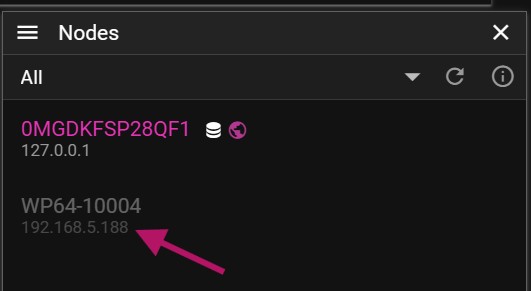
Start by finding the IP address of the WATCHPAX 64. It is displayed on the WATCHOUT splash screen during startup. If the splash screen is not visible, you can also find the IP address in the Nodes window in the WATCHOUT Producer software on the production computer. The WATCHPAX name will be listed with its IP address directly below it. Make a note of this address -- you will need it in the next step.
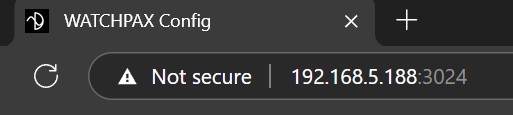
Open a web browser on the production computer and navigate to the WATCHPAX 64's IP address with port 3024 appended (for example, http://192.168.1.100:3024). The production computer and the WATCHPAX 64 must be on the same network for the connection to succeed. If the page does not load, verify that both devices are on the same subnet and that no firewall is blocking port 3024.
The WATCHPAX Config user interface will load, showing information about all connected display outputs. Each output is listed with its channel number, connection status, and current display mode. This overview is the starting point for all configuration tasks including EDID emulation, mosaic setup, and hardware synchronization.
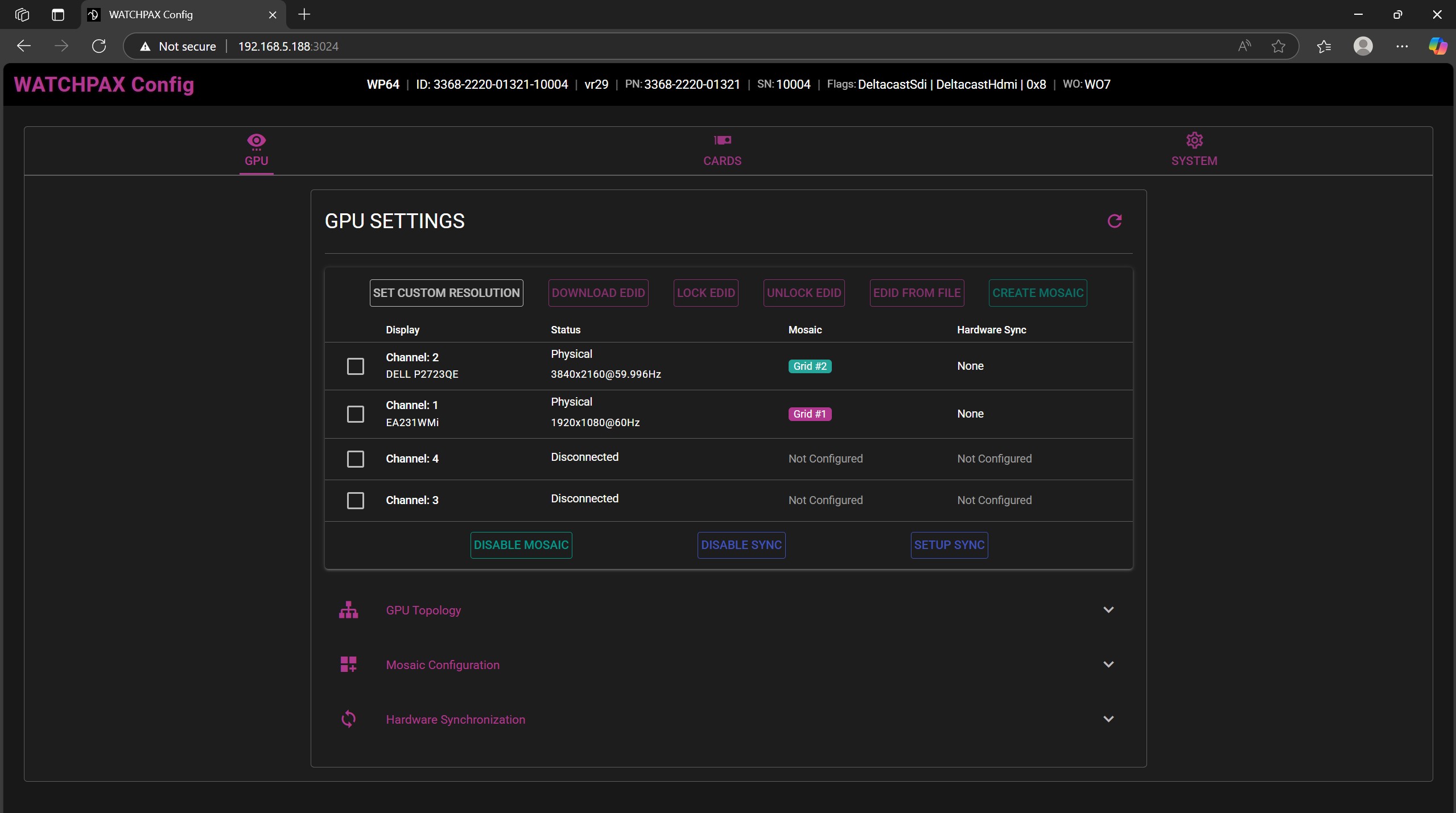
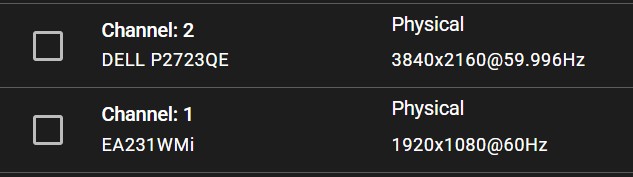
Confirm that all channels show a display connected under the Channel label, along with the current resolution and refresh rate. If a channel shows as disconnected or reports an unexpected resolution, check the physical cable connection and ensure the display is powered on and set to the correct input. All channels must report the correct status before proceeding with any synchronization configuration.
In the case of using mosaic clusters with several WATCHPAX units, each server must be set up separately.