MOSAIC
ENABLING MOSAIC
Under the GPU tab is the possibility to set up one or more Mosaic grids, using the displays connected to the WATCHPAX.
IMPORTANT Before beginning, make sure all displays have the ability to use a desired display mode (resolution + refresh rate)
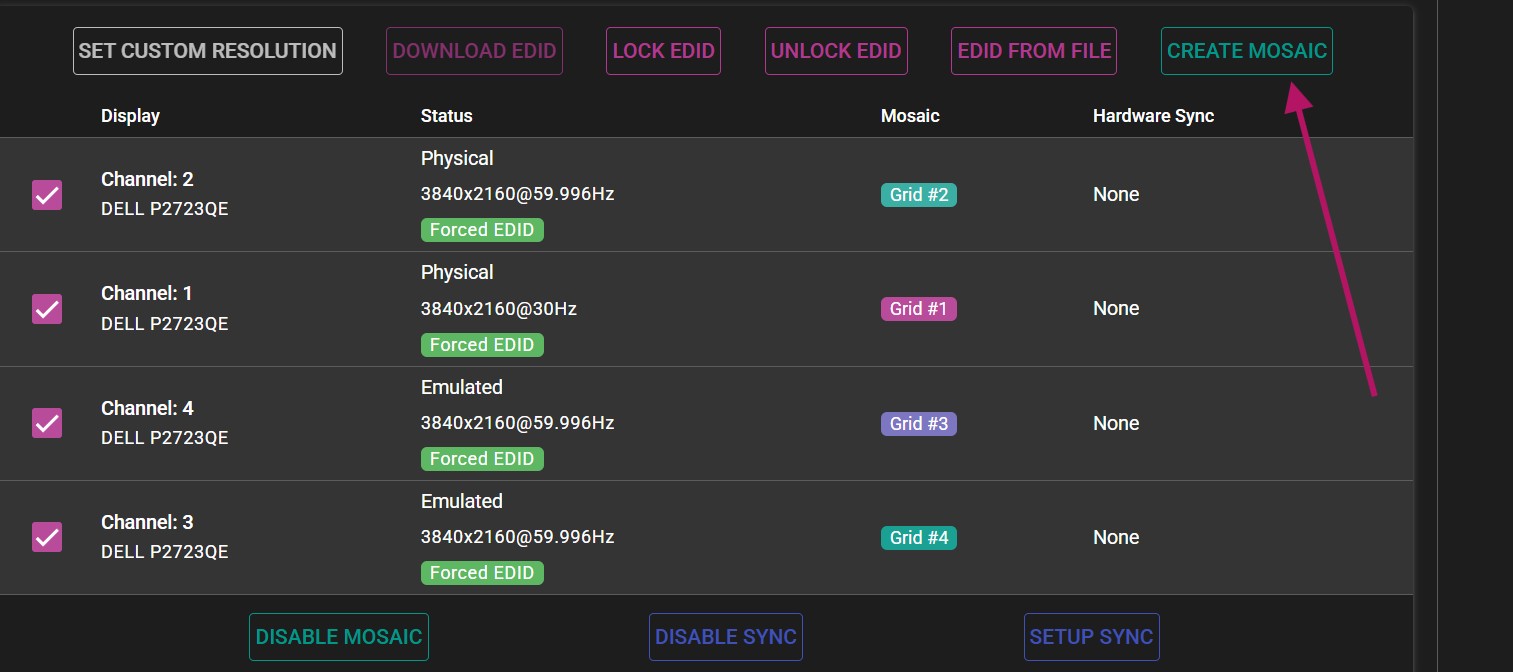
- Select all displays and click on the CREATE MOSAIC option. If there is only one display present or only one display selected, the option will be grayed out.
- In the Create Mosaic Grid menu, configure the grid to specification.
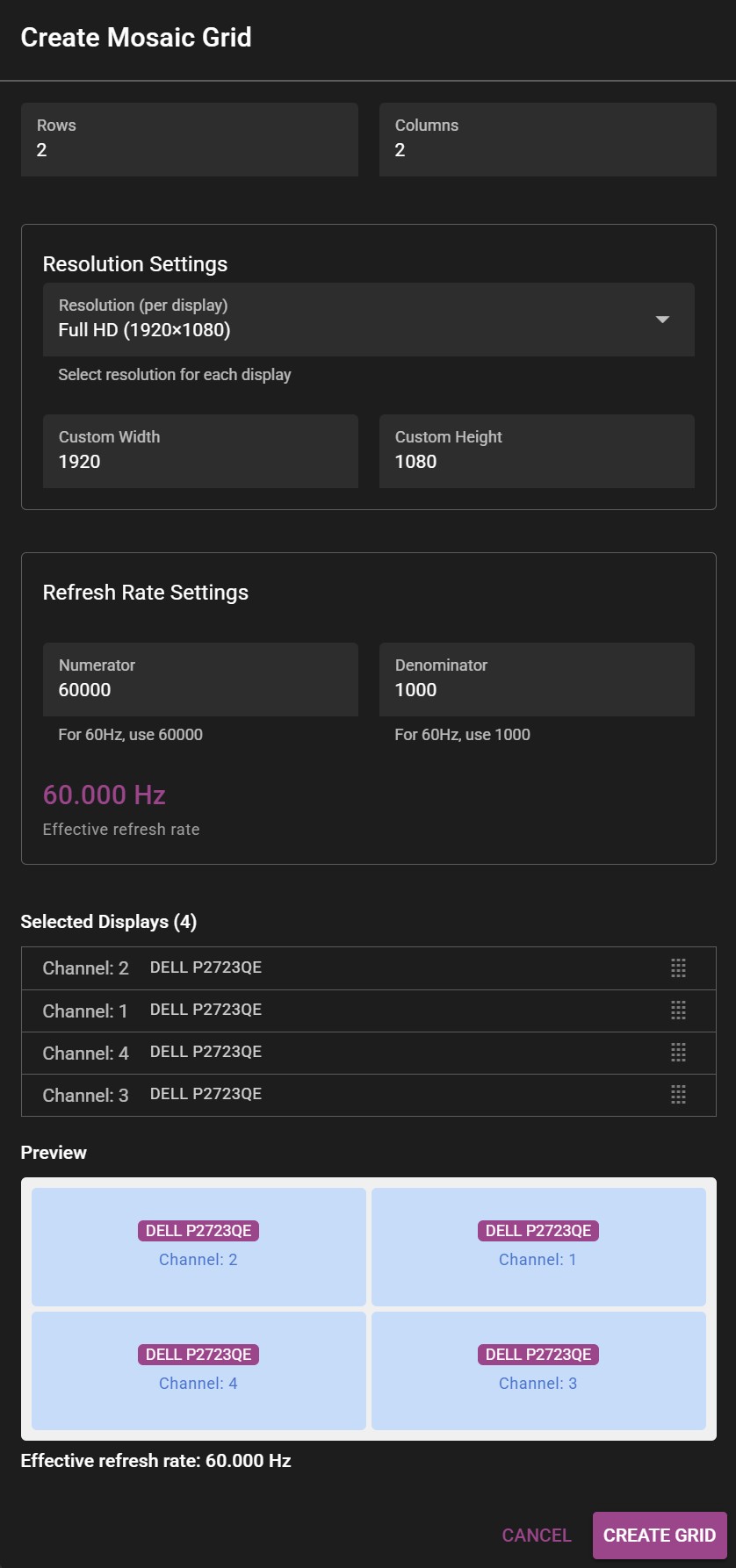 Example of the Create Mosaic Grid window.
-
Select the appropriate number of rows and columns. >For 2x2 setup, the number of columns and rows will be 2 each. >For 4 displays stacked horizontally (panorama), the grid would consist of 1 row and 4 columns (1x4).
-
Select the resolution (for each display) by specifying width and height. >The resolution is specified for each participating display, not the whole resulting mosaic. >For example: To get a 4K mosaic from 4 HD outputs, you would put 1920x1080 in Custom Width and Custom Height respectively.
-
Select desired refresh rate.
NOTE: For 59.94 Hz the correct values are 60000 for Numerator and 1001 for Denominator.
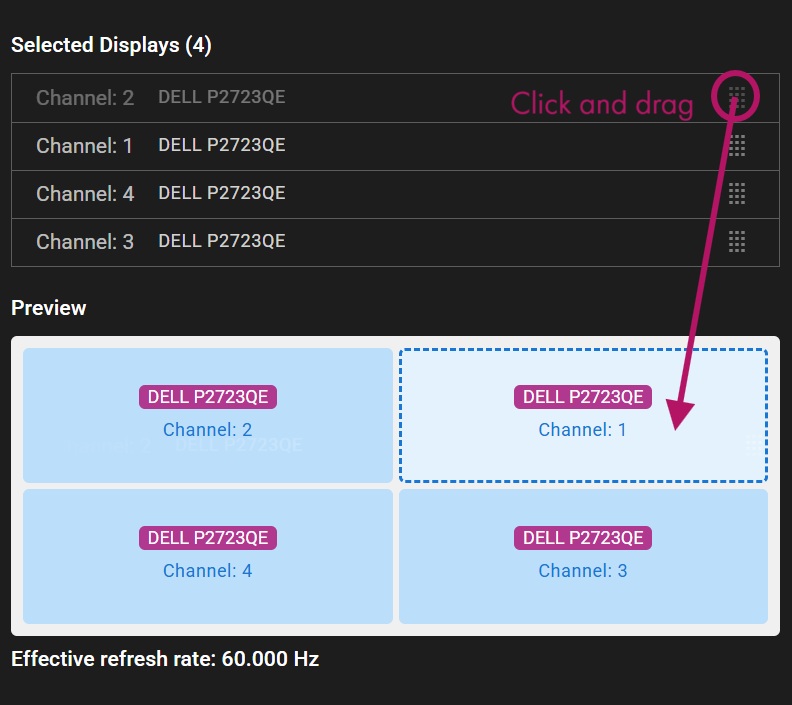
- Drag the correct channels to their respective positions in the preview panel to create the desired layout.
- Click Create Grid to apply changes.
NOTE: Before finalizing the mosaic grid, make sure WATCHOUT is not rendering on the displays that are being used for the grid. Disable all of them before accepting changes.
- If everything was set up correctly, a message will confirm that the mosaic grid was created successfully.

NOTE: In the case of using mosaic clusters with several WATCHPAX units, each server must be set up separately.