INTERFACE
TABLE OF CONTENT
LAYOUT AND FUNCTIONALITY
Below is an example of how the WATCHPAX Config user interface looks when connected to a WATCHPAX 64:
Note: The WATCHPAX 64 model is our server machine with the largest amount of possible hardware variations, and thus the most functionality visible in the user interface. That is why it has been used in this example. Other server models may not have all of the options or graphical elements shown below.
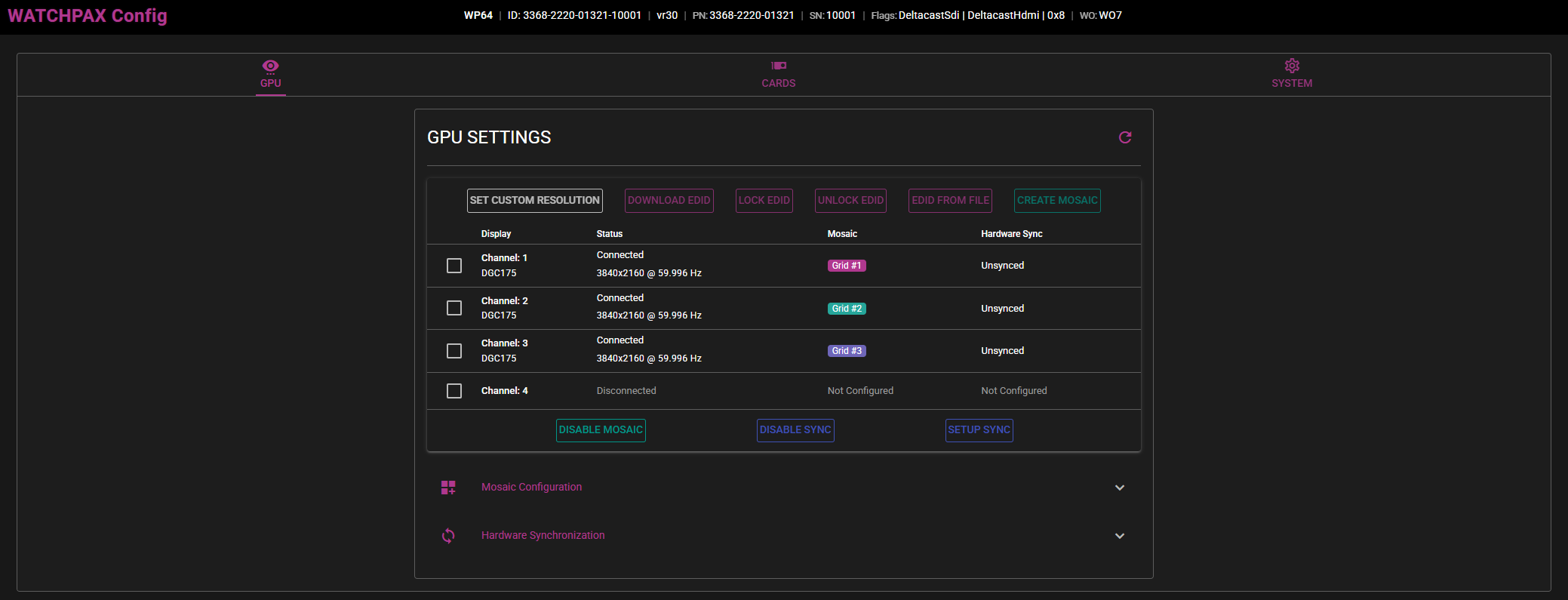 User interface layout.
Information displayed in order from left to right: Model name, machine ID, image version, product number, serial number, flags for different hardware components, WATCHOUT versions.
TABS
The graphical user interface consists of selectable tabs in the upper row. Each tab with different information being displayed and settings to configure.
GPU
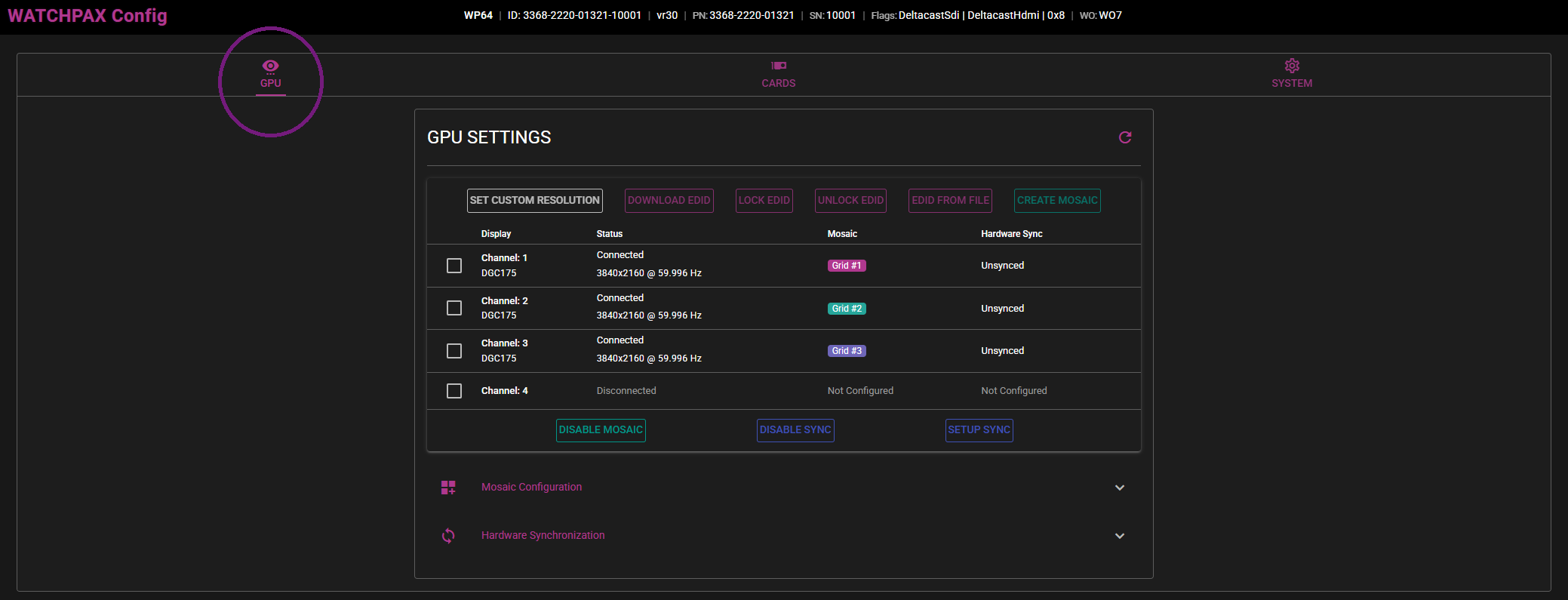
With the GPU tab selected, an overview of the displays connected to the server's GPU outputs is shown. Here you can see information like:
- What display is connected to what channel,
- Model name of that display,
- If the display has an EDID configured,
- Resolution and refresh rate per display,
- If the display is part of a Mosaic grid,
- If hardware synchronization is enabled on the display.
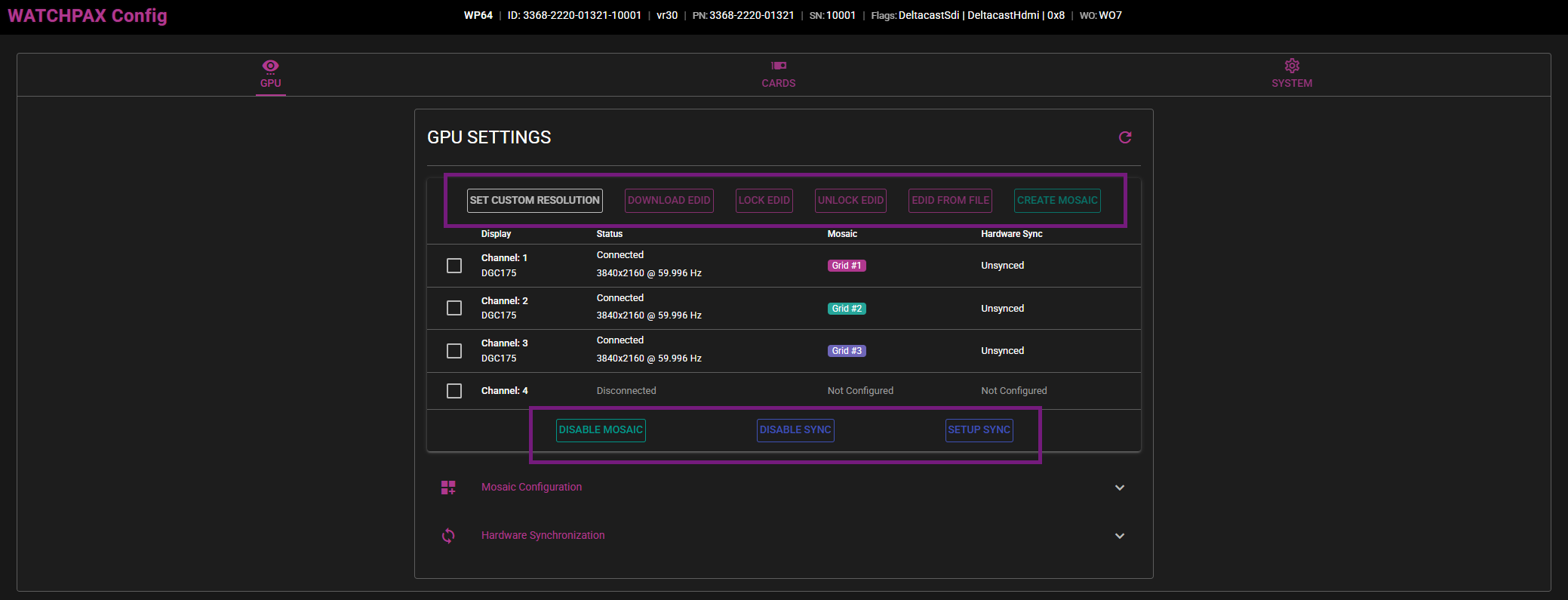
In this view, there are several settings that can be configured on the server. These are EDID, Mosaic and Hardware synchronization. They will be explained in their own separate chapters.
Also in the GPU tab, there are dropdown menus showing more information about their respective areas.
MOSAIC CONFIGURATION
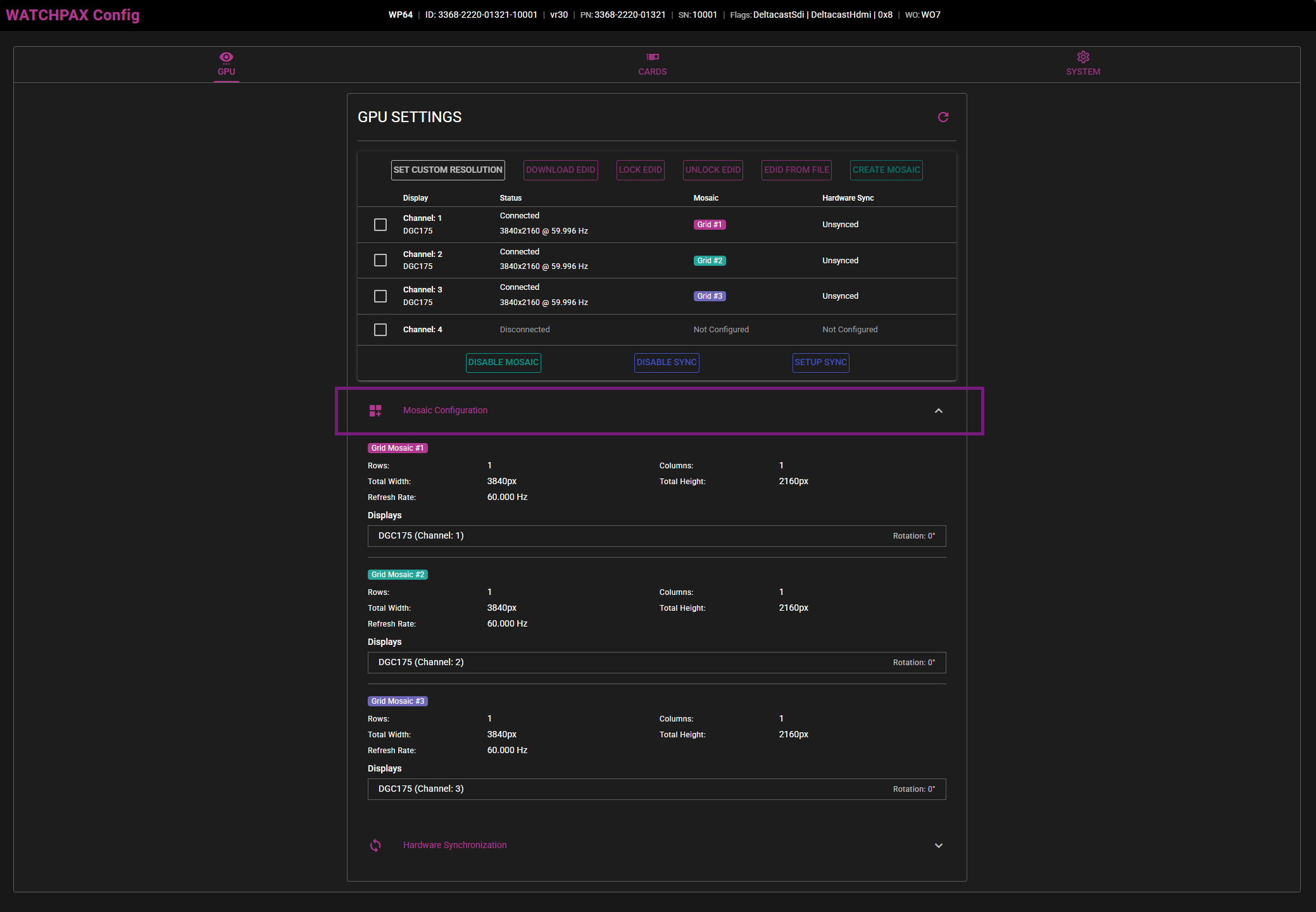
If you have one or more Mosaic grids set up, information about them will be shown here. This will be information like amount of rows and columns, resolution, as well as if displays are on the same grid or on separate grids.
HARDWARE SYNCHRONIZATION
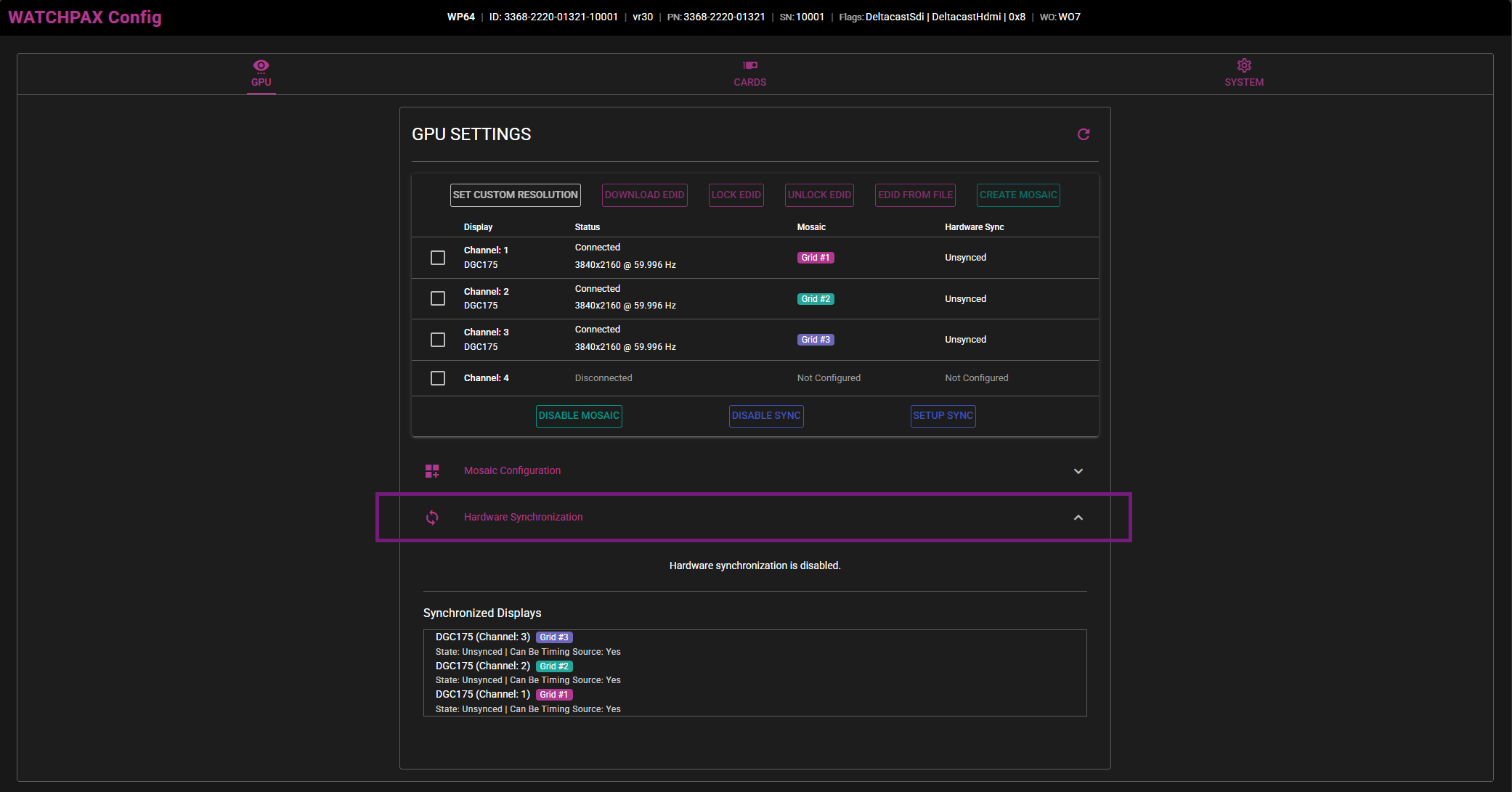
Whether or not hardware synchronization is enabled and what displays are synchronized will be shown under this dropdown menu.
CARDS
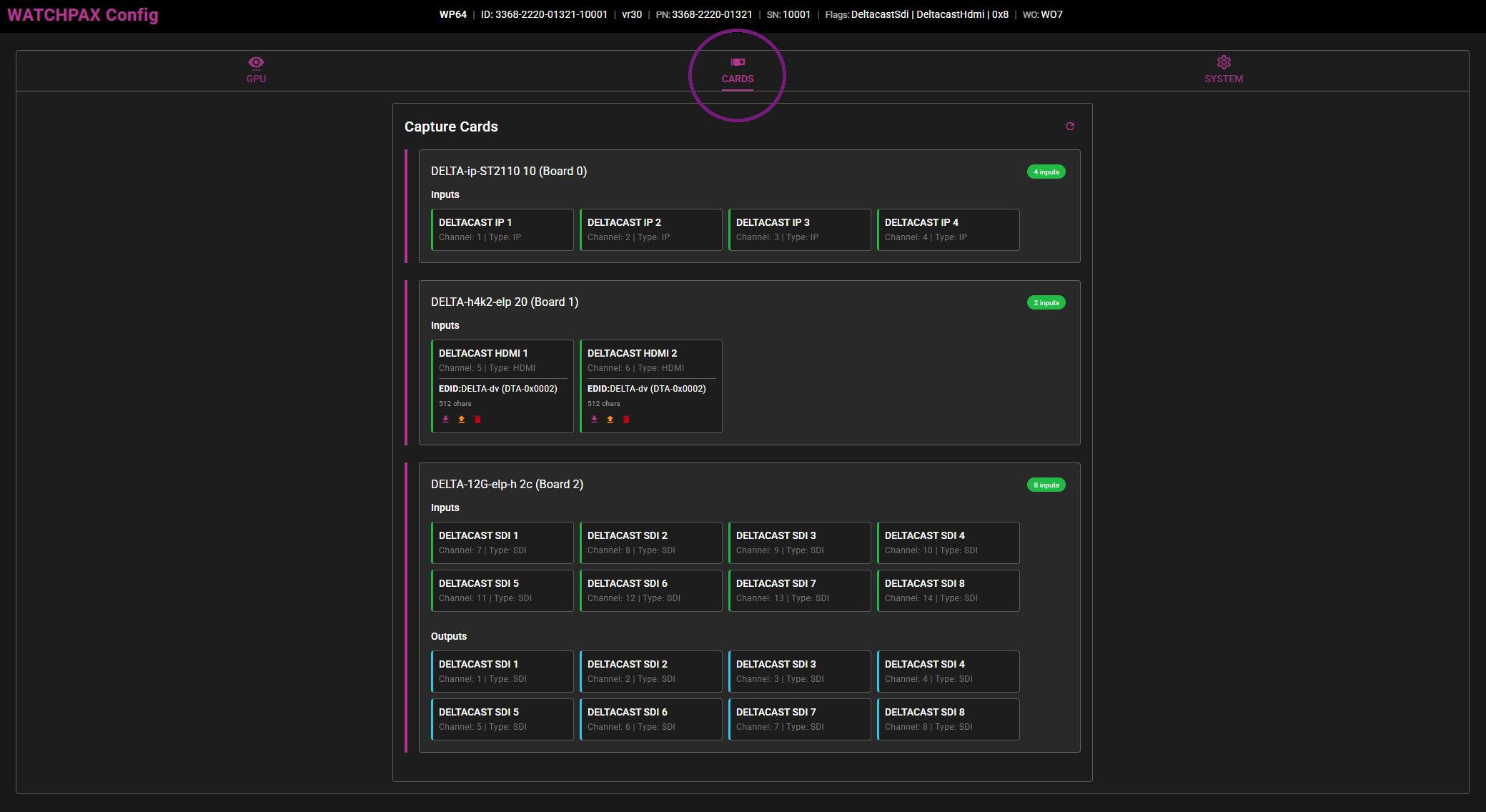
With the CARDS tab selected, an overview of all the different capture cards installed on the motherboard of the WATCHPAX will be displayed, as well as their active inputs and outputs (SDI). In this case there is an ST2110 ip capture card, an HDMI capture card and an SDI capture card from Deltacast installed.
Note: Currently, WATCHPAX Config only supports cards from Deltacast, which means that the Datapath capture cards in the WATCHPAX 60A and 60B will not show up in this overview.
SYSTEM
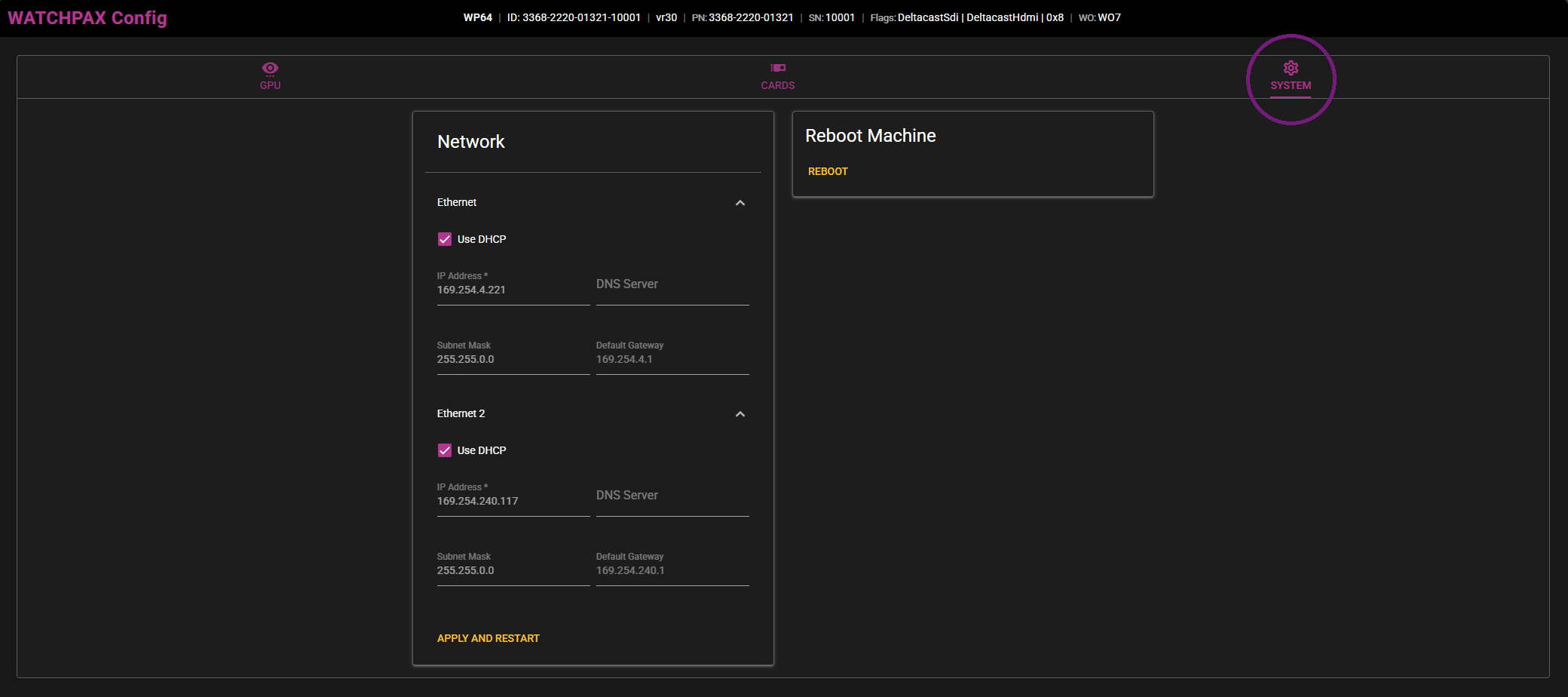
NETWORK
Under the SYSTEM tab there is information about network connections on the WATCHPAX. Here it is possible to change network settings and use a static IP address. In that case, uncheck Use DHCP on the network connection you want to change. Both ethernet and wireless connections will appear here. Enter the desired IP address, DNS server, subnet mask and default gateway and click on Apply and restart. The WATCHPAX will then reboot itself with the new network settings in use.
If static IP has previously been set, simply checking the Use DHCP option followed by Apply and restart will reassign an automatic IP address to the server on bootup.
REBOOT MACHINE
There is also an option on the righthand side for a simple reboot of the machine remotely if needed.